
Do you want to make a logo for your website? Perhaps you can’t afford a professional designer, but you’re worried that your graphic design skills aren’t up to the task.
Your logo is a crucial component of your brand’s identity. You want it to not only look high quality but also to convey your brand’s identity and values.
In this beginner’s guide, we will show you how to make a logo for your website. We’ll go through several different solutions, so you can pick the one that suits you best.
Why You Need to Create a Logo for Your Website
Many people around the world can recognize big name brands from their logos. When you see the iconic Golden Arches of McDonald’s abroad, you instantly recognize it and know what will be on the menu there.
That’s the power of branding, and a logo plays the most important role in building that reputation.
Whether you’re creating a blog, making a website, or starting an online store, having a unique logo makes your brand look legitimate. It helps you build trust, recognition, and promote your business.
Often when users want to start working on an online business idea, they start by thinking of business names and go straight to designing logos.
But before you do that, you need to make sure that your brand name idea is not already registered by someone else. See our guide on how to check domain name availability.
Once you have ensured that your business name idea is available, make sure to go ahead and register your domain, so no one else takes it (trust us, this happens more often than you think).
After you have registered your domain name, you’re ready to start designing your logo. We have some excellent free logo maker tools for beginners.
Tips on Making a Custom Logo for Your Website
Creating a custom logo for your website requires some understanding of design. However, as a beginner, you can follow these best practices to make sure that your logo looks polished and professional.
Keep your logo design simple and clean. This makes sure that your logo will look good even at a small size. Think how tiny the profile images are in your Facebook or Twitter feed. Use a transparent background for your logo. That way, you can put it anywhere, not just on a white area of your website. Get the highest quality file you can for your logo. You want it to look great at a large size or in print, too. You can copy it and make smaller versions for social media, blog posts, and website pages. Use your brand and website colors in your logo to help it harmonize with the rest of your website.
You can experiment with different logo styles and see what compliments your website / brand the best.
There are different types of logo designs commonly used by businesses. When making your own logo, you may want to experiment with some of these.
Wordmark Logo

A wordmark logo is a distinctive text-only logo. Your unique brand name set with specific fonts and colors can make an excellent logotype.
If you are making a custom logo for your website by yourself, this is a great option as it’s simple and straightforward.
Pictorial Mark Logo 
A pictorial mark is usually a brand image using an illustration or icon to represent an organization. Famous examples of this kind of logo include Apple, Nike, Audi, and more.
Combination of Both

These type of logos are the most common ones you’ll see around. They combine words or letters presented in an iconic layout. Famous examples of such logos include Dell, Pizzahut, Doritos, and more.
Choosing the Right Style for Your Logo
If you are making your own logo, then you’ll need to be realistic about your design skills first. Using a wordmark might seem very simple, but it needs to be unique, so you can easily register your logo as a trademark if needed.
You can also draw an icon to be used as your logo. However, you’ll need strong design skills to come up with a unique idea for your brand image.
For our own brands, we use a combination of both wordmarks and icons. For example, our sister company OptinMonster’s logo has a mascot placed on a wordmark.

Let’s take a look at a few different ways to create professional-looking logos for your websites (without hiring a designer).
1. Making a Custom Logo Using Constant Contact
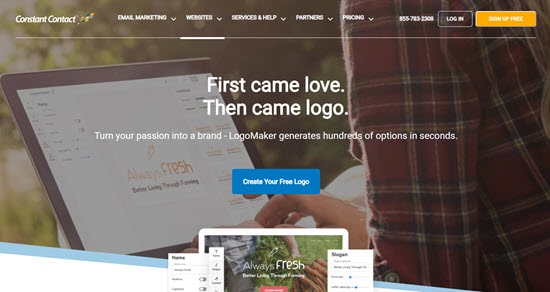
Constant Contact’s Logo Maker lets you come up with hundreds of different options for your logo. It’s completely free. You don’t need to pay to use it or to download your finished logo.
To begin, just click the ‘Create Your Free Logo’ button:
Next, type in your brand name. You can also add a slogan, if you want to.
You’ll see six sample logos to choose from.
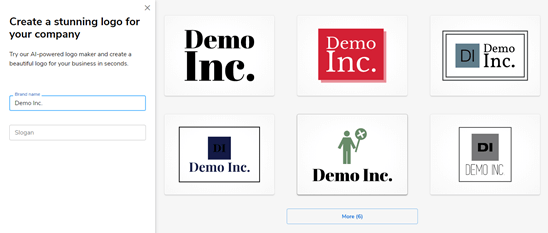
What if you don’t like any of those logos? Just click the ‘More (6)’ button to see additional options. You can keep doing this as often as you want.
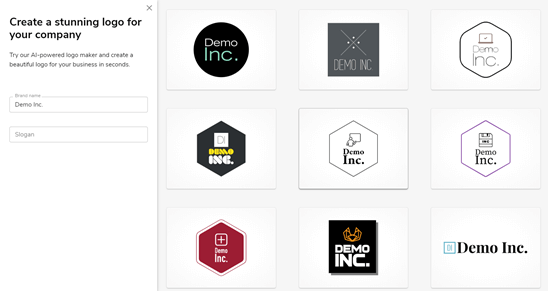
Once you’ve found a logo you like, click on it.
You’ll then see the logo editor. A great feature here is that you can check out variations of your logo down the right hand side of the screen.
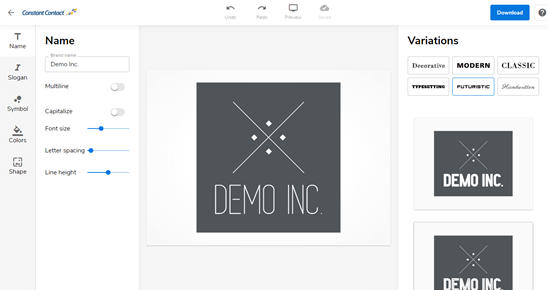
If you prefer one of these variations, just click on it to load it into the editor.
You can use the ‘Name’ section of the editor to change the letter spacing, font size, and line height. If your logo has two or more words, then you can split it onto different lines using the ‘Multiline’ toggle.
Here’s our logo again, with a smaller font size and increased letter spacing.
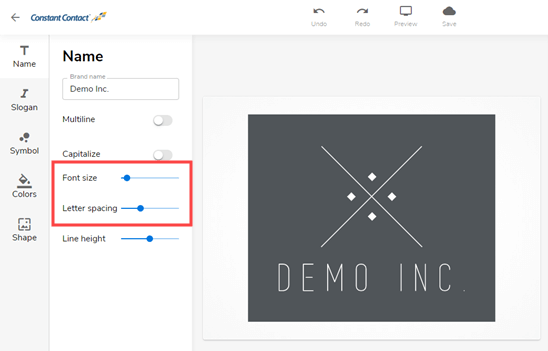
To edit other aspects of your logo, click on the tabs down the right hand side. For instance, click on ‘Symbol’ to adjust the size and positioning of the logo’s symbol.
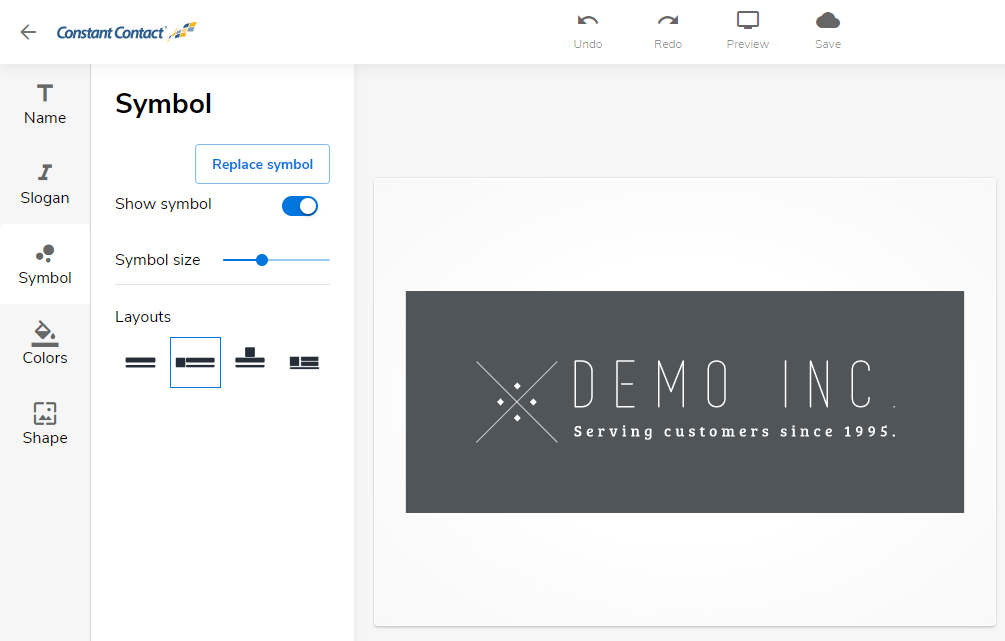
We thought that the layout of the logo would look good with a slogan, which we added under the ‘Slogan’ tab.
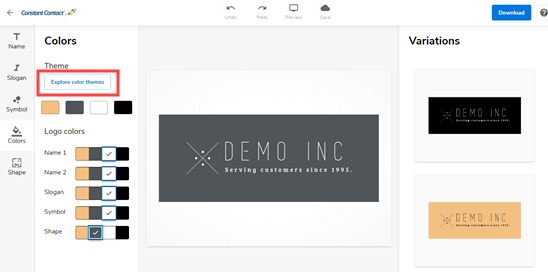
You can also adjust your logo’s colors using the editor. The logo maker will automatically create a color palette for you, and you’ll be shown different color variations to pick from.
If you want more, click ‘Explore color themes’ to choose different sets of color schemes.
Once you’re happy with your logo, click the ‘Preview’ button at the top of the screen. You’ll see how your logo could look on your website, on social media, and even on business cards, t-shirts, mugs, and more.
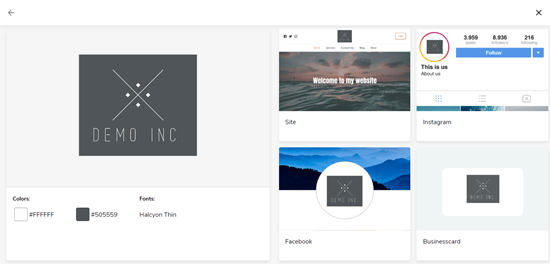
To close the preview, just click the X in the top bar. You can download your logo using the ‘Download’ button in the top right corner of your screen. It’s completely free.
You’ll get a .zip file with your logo in two different formats, PNG and SVG. You can scale up an SVG as large as you like without losing quality. We have instructions on how to add an SVG file in WordPress.
2. Making a Logo for Your Site Using Tailor Brands
Tailor Brands’ Logo Maker is easy and straightforward. It’s free to use, but note that you’ll need to pay to download your finished logo. The minimum you can pay is $9.99.
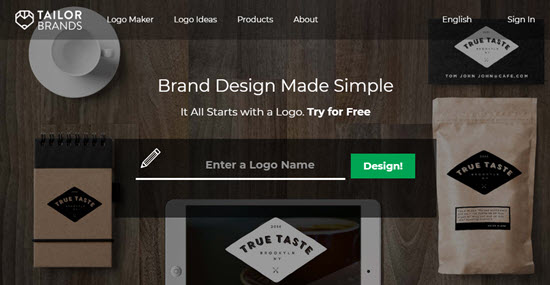
To begin, go to the Tailor Brands logo maker and type in the name of your company. Then, click the ‘Design!’ button.
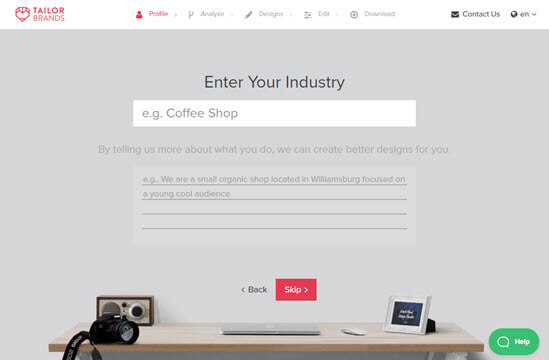
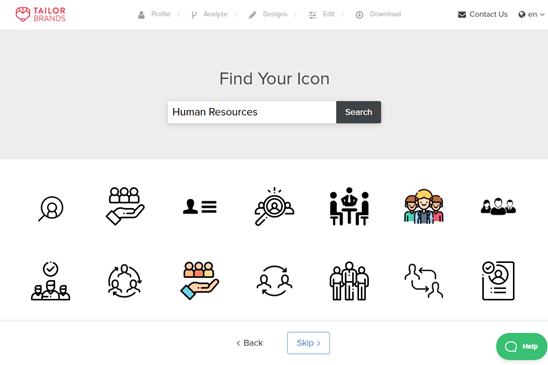
You’ll be prompted to enter your industry and (optionally) a short description of your company. We went with ‘Human Resources’ here.
Next, you can choose what type of logo you want. You can only select one option, though you can always restart the logo maker again if you want to try out other possibilities.
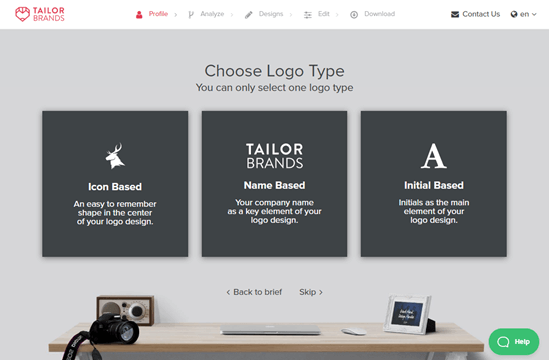
If you select ‘Icon Based’ here, you’ll be prompted on the next screen to choose an icon. The selection shown to you will depend on your industry, but you can change this using the search box.
Once you’ve found an icon you like, click on it and then click ‘Next’.
You’ll then be prompted to choose your preferred image out of a series of different font examples. If you chose to create a name based or initial based logo, this is the step you’ll come to first.
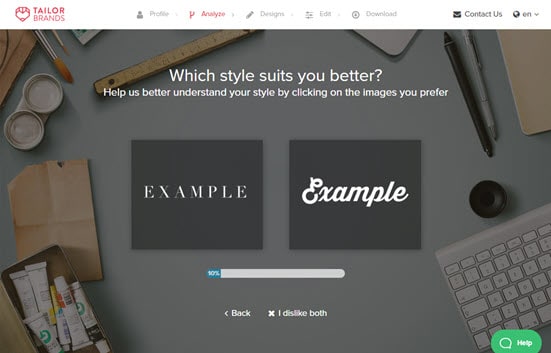
Just click on whichever font you prefer each time. Once you’ve completed this process, you’ll see a short animation while your logo is being created.
Next, you’ll be able to see your logo. You can click ‘Love it’ to be taken to the pricing plans, ‘Customize’ to start editing it, or you can scroll down on the right hand side for more logo options.
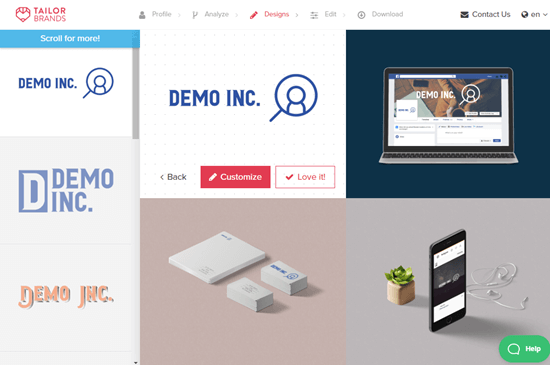
If you choose to customize your logo, you can choose from different styles, fonts, layouts, and more. You can also switch the icon you picked earlier for a different one.
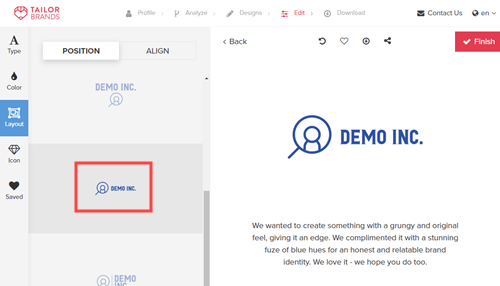
We decided to switch the layout of our logo, so the image was on the left of the text:
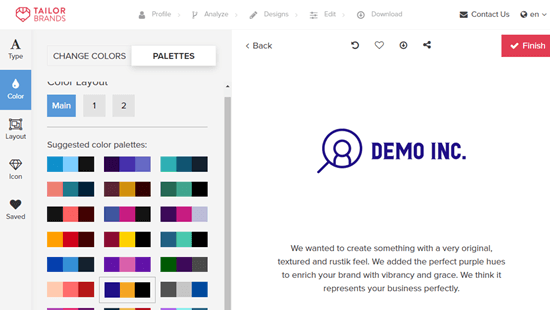
We also changed the color palette so that the logo was a purplish blue:
Once you’re happy with your logo, you can click the ‘Finish’ button.
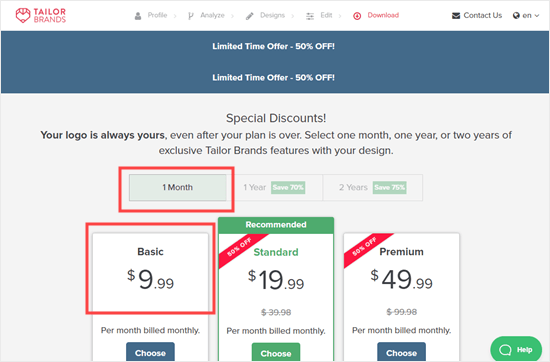
You’ll then be taken to the pricing page and presented with a number of different pricing plans.
These plans give you access not just to your logo but also to graphic design and website creation tools. They could be a good option if you want access to things like stock photos.
If you just want the logo, click the ‘1 Month’ tab then select the ‘Basic’ plan. You only need to make one payment for your logo to be yours to keep. You can cancel the plan straight after that.
3. Making a Custom Logo for Your Website Using Looka
Looka is a quick and easy online graphic design tool that allows you to make a logo without any design skills. It was formerly known as Logojoy.
Like Tailor Brands, Looka’s tool is free to use, but you’ll need to pay to download your logo. Prices start from $20.
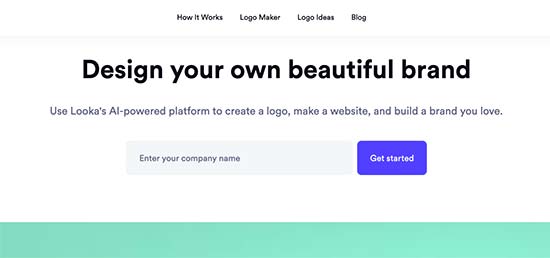
To get started, simply visit the Looka website and enter your company name in the search box.
Next, you need to select your business type.
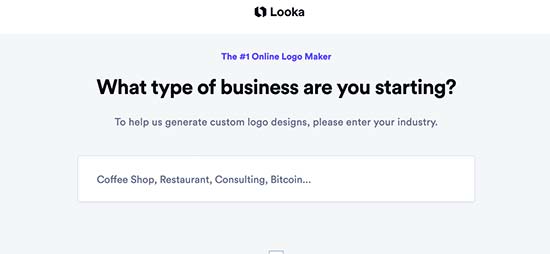
Click the ‘Continue’ button to move towards the next step.
You’ll be prompted to create an account or sign in through Twitter, Facebook, or Google.
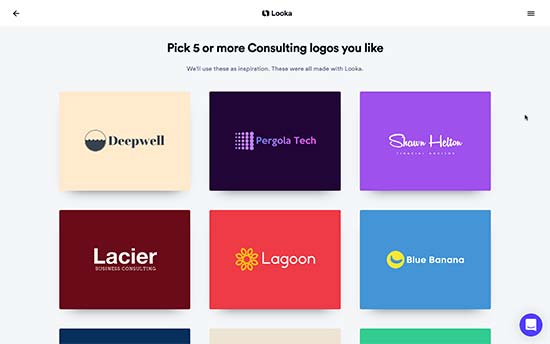
You’ll then seen a number of logos that have been automatically generated for you.
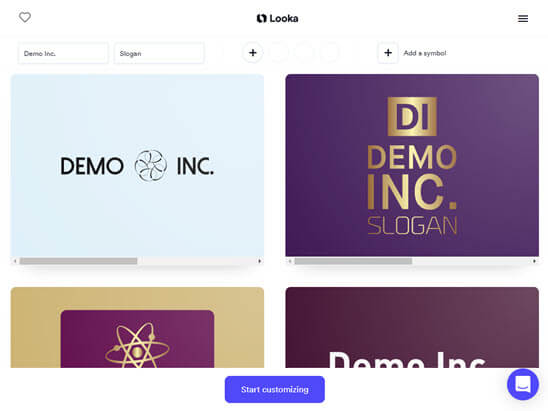
If none of the logos are quite right, try choosing colors and symbols that you want to try.
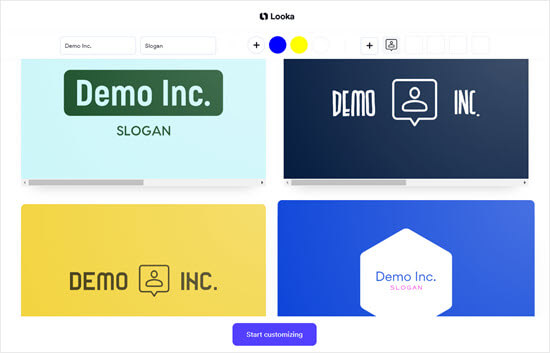
The new designs that use these options will appear at the bottom of the list. Looka will give you a ‘See your changes’ button that you can use to jump straight to them.
Once you’re happy with one of the logos, simply run your cursor over it and click ‘Customize’ to go straight to the logo editor.
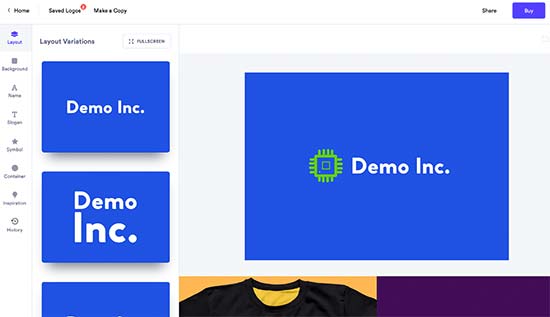
Using the drag and drop logo editor, you can adjust the font size, choose a transparent background, change the font family, add or change your icon, and more.
Feel free to edit the design as much as you like and share it with colleagues for a second opinion. Once you are satisfied, click on the ‘Buy’ button in the top right corner to purchase and download your logo.
Note that if you want a transparent version of your logo, you’ll need to pay $65 for the Premium plan.
4. Creating a Custom Logo using Hatchful by Shopify
Shopify is a popular eCommerce platform. They also offer a free logo maker tool called Hatchful. This allows you to easily create beautiful logos for your website without any design skills.
First, you need to visit Shopify’s Hatchful page and click on the ‘Get Started’ button.

Next, you need to choose your business type. If you cannot find an exact match then simply use the closest possible match.
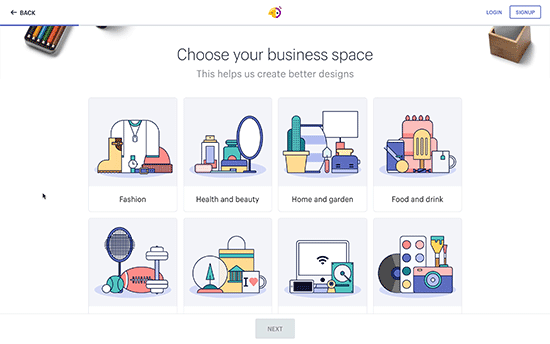
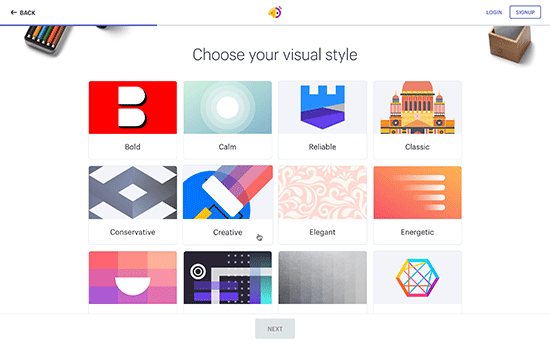
After that, Hatchful will ask you to choose a visual style for your logo. You need to select a style that matches your business website’s style, look, and industry.
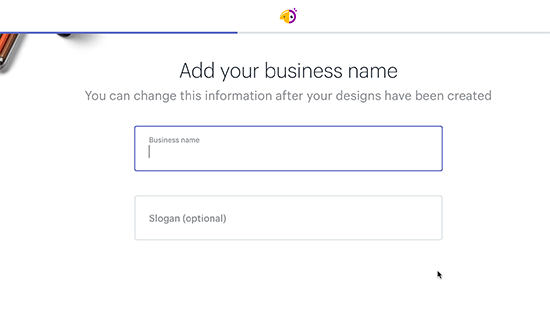
Next, enter your business name and a slogan (optional).
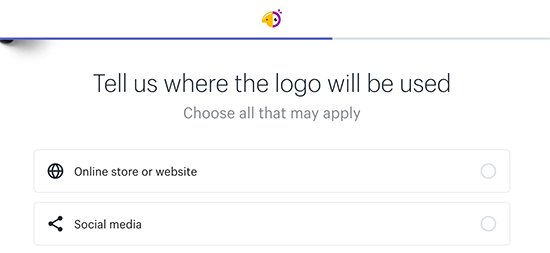
After that, you will be asked to select where you plan to use the logo. Select the ‘Online store or website’ option to continue.
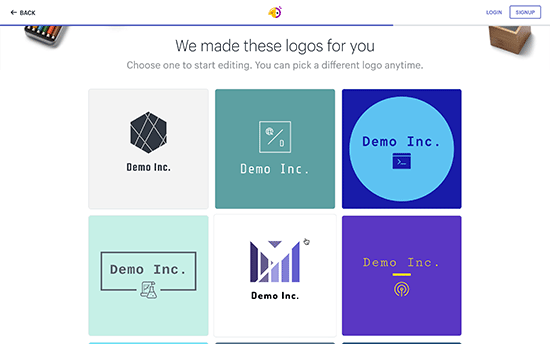
Finally, the wizard will analyze your answers and show you several logo samples to choose from. You can select any of these logos to further edit.
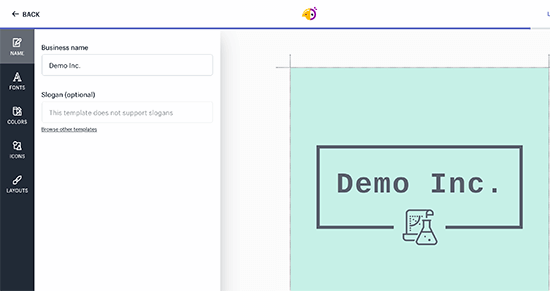
This will launch a simple logo editor where you will see a live preview of your logo with editing tools on the left column. You can edit the text, add an icon, add symbols, and change the background.
Once you are satisfied with your design, you can click the ‘Next’ button to download your logo files.
You’ll be asked to create a free account, and your logo files will be sent to your email address. The zip file will include not just your logo but a favicon or site icon, and cover images for your social media profiles.
5. How to Make a Logo for Your Website using Canva
Canva is a popular free online graphic design tool. It comes with easy to use tools that allow you to create images for your website.
The basic Canva account is free and gives you access to dozens of ready-made templates for all sorts of graphics.
To get the full power of Canva for creating your logo, you may want to sign up for a Pro account. This lets you upload your own fonts, set your brand colors, and more.
After creating your account, type ‘Logo’ in the search box.
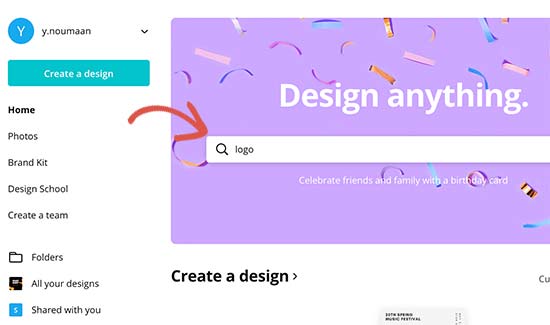
Canva will now load their drag and drop editing interface with several logo templates to choose from. Just pick a template to get started.
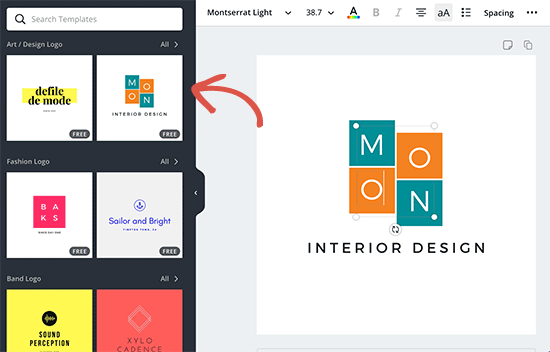
After that, you can point and click on any item in the template to edit it. You can rotate, resize, crop, and delete items.
You can also add more text, icons, shapes, patterns, and backgrounds to your design from the left column. Remember, though, that your logo is likely to look best if you keep it simple.
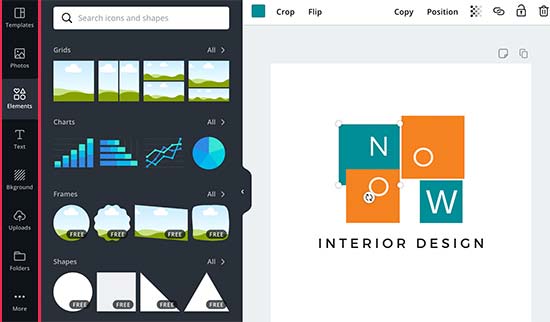
We recommend spending some time trying out different templates and play around with the design tools. Keep working on your design until you are satisfied with it.
Once you are finished click on the ‘Download’ button to save the image to your computer.
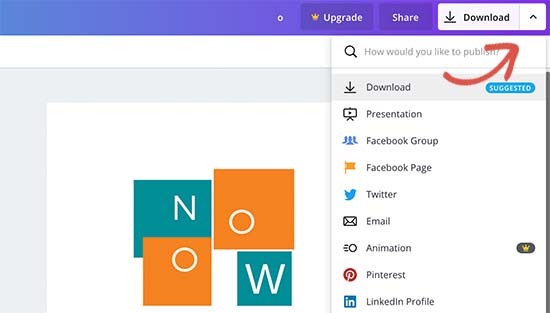
Choose the high-quality PNG format to download a transparent image. You can now use the logo on your website.
6. Hiring Someone to Make Your Website Logo
The online logo maker tools we’ve covered are made specifically for beginners to easily create a logo for their website. You can create a simple and elegant logo using these tools, but they are still limited in design choices.
If you can afford it, the best option is to hire an expert graphic designer to make a logo for your website. There are several places where you can find freelance designers.
You can use any of the popular online job marketplaces to hire a logo designer.
There are thousands of people offering graphic design services on these websites. How do you pick the right person for the job?
Sticking to these best practices can help you find the perfect candidate to make a logo for your business.
Look for ratings, reviews, and the number of completed jobs on the designer’s profile. These are good indications of quality services provided to previous customers. Give a detailed brief to the designer about your specific design requirements. Set your own price for the logo, but keep in mind that a unique and creative design will cost more than a generic logo. Make sure that you get the original source files in vector file format. This will allow you to later resize or reuse your logo in other places like business cards, posters, t-shirts and more.
Just a quick update to help you even further, with some additional tips on operating your business from home during COVID-19.
We hope this article helped you learn how to make a logo for your website. You may also want to see our guide on how to create a free business email address and how much does it cost to build a website.
If you liked this article, then please subscribe to our YouTube Channel for WordPress video tutorials. You can also find us on Twitter and Facebook.
The post How to Make a Logo for Your Website (Simple Guide for Beginners) appeared first on WPBeginner.
Read more: wpbeginner.com
After our articles on how much does a WordPress website cost, and how much does it cost for a custom WordPress theme, many of you asked us to write about how much does an eCommerce website cost?
Knowing the cost of building an eCommerce website is important because it helps you calculate the investment you will need to start your new online business idea.
The challenge is that there are many factors involved in making an eCommerce website, and all of them will affect the overall cost of your business.
If you don’t have a clear action plan, then you can easily end up overspending. But don’t worry, we are here to help.
In this article, we will break down all the information to give you a clear idea of how much does an eCommerce website cost. We will also show you different ways to avoid overspending and maximize profits.
Ready? Let’s get started.
How to Calculate the Cost of Building an Ecommerce Website?
The best way to calculate the cost of building an eCommerce website is to compare different eCommerce platforms, tools, add-ons, and additional services that you will need based on your business requirements.
This is the only way that will give you an accurate cost of an eCommerce website.
Since there are multiple ways to create an online store, most online eCommerce website cost calculators end up being completely inaccurate (so its best that you avoid them).
To keep this article focused, we will break down our eCommerce cost analysis into the following major expenses:
Hosting costs Payment processing costs Design costs Add-ons and extensions cost Total costs of an eCommerce website Costs of growing your business
There are many different eCommerce software and platforms that you can use to make an online store. For the sake of this article, we will use the following top eCommerce platforms:
WooCommerce Shopify BigCommerce
That being said, let’s start calculating the cost of making an eCommerce website, and how to save money with smart choices along the way.
1. Hosting Costs

Every website on the internet needs web hosting. This is where your website’s files are stored. You’ll also need a domain name which is your website’s address on the internet, e.g. wpbeginner.com.
When it comes to eCommerce hosting, there are two routes that you can take for your eCommerce projects. Each of them have different costs and technical requirements.
Let’s take a look at both of them.
1. Hosting Costs for Self-Hosted eCommerce Website
WooCommerce is the most popular eCommerce platform in the world powering millions of small and large online stores.
WooCommerce itself is available as a free software which means you can download and use it for free to create as many eCommerce websites as you like.
However, you’ll need a WooCommerce web hosting account to install it. You’ll also need a domain name and an SSL certificate.
A starter website hosting plan normally starts at $7.99 / month, domain name $14.99 / year, and SSL Certificate starts from $69 / year.
All of these costs add up to a small but still significant investment to make a starter eCommerce store.
Luckily, Bluehost has agreed to offer WPBeginner users a generous discount on hosting with a free domain name and SSL certificate.
Basically, you can get started for just $2.75 per month.
→ Click Here to Claim This Exclusive Bluehost Offer ←
As your business starts growing, you will eventually need to upgrade your hosting plan to handle more traffic.
This means your hosting costs will start increasing as more customers visit your website. Hopefully, by that time you’ll be making enough money (sales) to justify the increasing costs of hosting.
You can switch your hosting plan to a managed WordPress hosting company like WP Engine. Their Starter plan is $35 per month and scale plan is $290 per month, but you can use our WP Engine coupon to get an additional discount.
Here are the advantages of a self-hosted eCommerce site:
You get complete freedom to build your eCommerce site the way you like. You can save a ton of money by only paying for what you need. You can make unlimited sales, add unlimited products, use any payment gateway platform that you like.
With that said, some non-techy users don’t want to learn how to install their own eCommerce software and prefer a done for you solution instead. That’s where the SaaS eCommerce platforms come in.
2. Hosting Costs for SaaS eCommerce Platforms
Ecommerce platforms available as SaaS (Software as a Service) do not require you to install software, manage it, or host it yourself.
Your website hosting price is included with the software. You don’t need to worry about managing website hosting.
The two of the most popular SaaS eCommerce platforms are Shopify and BigCommerce.
They both offer incredibly easy and highly scalable eCommerce platforms to sell your products online. Both platforms include SSL, but you’ll need to purchase a domain name separately. See our guide on how to register a domain name for instructions.
Here is the cost of Shopify eCommerce plans:
Basic Shopify: $29 / month Shopify: $79 / month Advanced Shopify: $299 / month
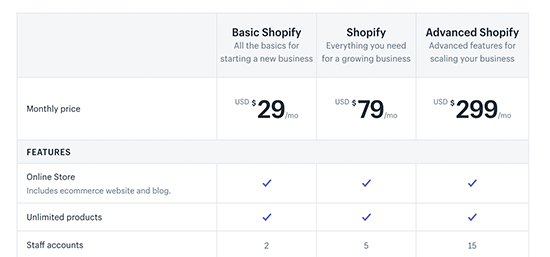 Now, let’s compare it with the BigCommerce plans:
Standard: $29.95 / month Plus: $71.95 / month Pro: $224.95 / month
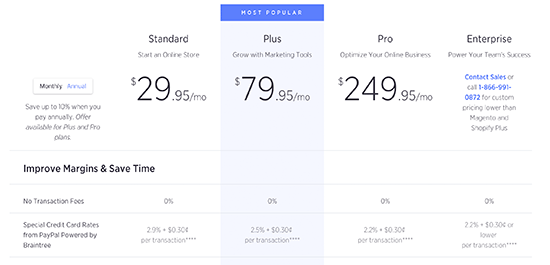
For both platforms, each plan comes with a different set of features that you need to review, so you can choose the right plan for your needs.
There are some major differences between Shopify and BigCommerce, and we will discuss them throughout the article.
For example, BigCommerce Standard plan limits you to $50,000 in online sales per year. After that, you will need to upgrade your account.
Shopify on the other hand forces you to use Shopify payments. If you want to use another payment gateway, then you will be charged an additional 2% fee for each transaction made on your eCommerce store using third-party payment gateway. The fee drops to 1% and then 0.5% for their higher paid plans.
Estimated Ecommerce Hosting Costs:
Self-hosted eCommerce website: $2.75 – $241.67 / month
SaaS eCommerce hosting costs $29 – $299 / month
Please keep in mind that this cost estimate is for starter to medium sized online stores. For high-volume stores, you will likely have to upgrade to Shopify Plus or BigCommerce Enterprise which costs in the thousands per month.
On the self-hosted site, you will have to upgrade your hosting plans with WP Engine, Liquid Web, or whichever hosting provider you are using.
Based on the hosting cost analysis above, self-hosted eCommerce site with WooCommerce comes out as a winner. See our guide on: how to start an online store.
2. Payment Processing

Many beginners don’t look at payment processing fees when choosing an eCommerce platform. This can have a serious impact on your business because it will significantly increase your costs and lower your profits.
Let’s see how different eCommerce platforms handle payments, and how much it would cost you to accept payments from your customers.
Payment Costs in WooCommerce
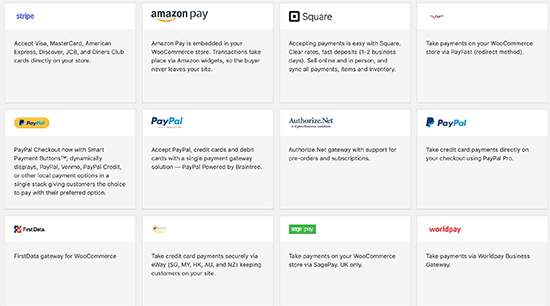
WooCommerce is an open-source software, so it has many payment platform integrations. This means self-hosted eCommerce websites using WooCommerce are free to use any payment gateway they want.
By default, WooCommerce supports PayPal and Stripe payment gateways to accept credit card payments. You can also choose from dozens of other payment services which are available as extensions.
You will only be paying the processing fees to the payment gateway service you choose. Each one of them has different rates for different regions, currencies, services.
Another advantage is that WooCommerce has extensions and integrations available even for some lesser-known regional payment services. This is a big advantage for eCommerce websites catering to customers in specific countries.
Using WooCommerce, you can compare the rates for different payment services and choose the best option for your business.
WooCommerce also does not put a cap on how many sales you can make on your website. This gives eCommerce websites freedom to choose their payment service and not pay any overage fees.
WooCommerce payment processing costs:
Payment processing fees vary depending on the payment gateway, currency, and region. Here is a quick overview of popular payment gateways in US dollars.
PayPal: 2.9% + $0.30 for transactions over $10 Stripe: 2.9% + $0.30 per transaction Authorize.net – 2.9% + $0.30 per transaction + $25 monthly fee.
Payment Costs in Shopify
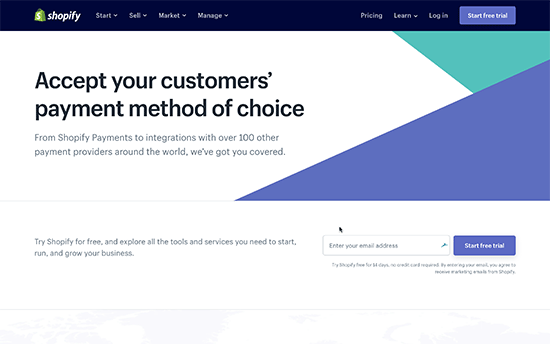
Shopify offers its own payment solutions called Shopify Payments which lets you accept credit card payments on your website. It also offers many third-party payment gateways including regional and cryptocurrency payment services.
Shopify Payments is available only in 13 countries at the time of writing this article. You will need to carefully read payments terms for your country as you are not allowed to sell certain items in some countries.
If you choose to use a third-party payment service, then you will pay that particular payment gateway’s fees + 2.0% additional fee to Shopify. This might not seem a lot at first, but it can become a significant amount in the long term.
Considering that most payment services charge 2.9% of the transaction amount on average, this means you could end up paying up to 5% of total transaction as payment processing charges.
Now if you are in one of the 13 countries supported by Shopify, then you get almost the same rate as PayPal.
However, if you are not in those select countries, then you will pay 2% additional charges to Shopify for each transaction which could significantly reduce your profit margins.
Shopify Payment processing costs
Shopify Payments: 2.9% + 30¢ per transaction Third-party payment services: The payment gateway fees + 2% additional fees paid to Shopify for each transaction.
Payment Costs in BigCommerce
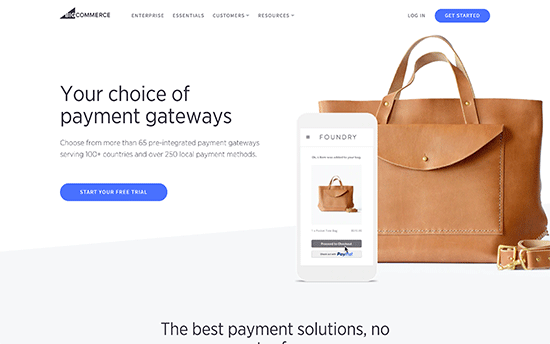
BigCommerce allows you to choose from over 65+ third-party payment gateways. These payment platforms provide a wider global reach than Shopify, but it is not as large as WooCommerce.
The biggest advantage of using BigCommerce is that it does not charge additional transaction fees. This means you only pay for each transaction to the payment service provider you choose (similar to WooCommerce).
The charges for each transaction will depend on payment service, currency, and country. You can choose from all popular payment services like PayPal, Square, Stripe, Authorize.net, and many more.
BigCommerce Payment processing costs
PayPal: 2.9% + $0.30 for transactions over $10 Stripe: 2.9% + $0.30 per transaction Authorize.net – 2.9% + $0.30 per transaction + $25 monthly fee.
Estimated Costs for Payment Processing on an Ecommerce Website
Your payment processing costs will depend on your eCommerce platform, and the payment services you choose. Here is an average estimate of the payment costs.
WooCommerce: PayPal or Stripe – 2.9% + $0.30 for transaction Shopify : Shopify Payments – 2.9% + 30¢ | Additional 2% per transaction for third-party payment gateways BigCommerce: PayPal or Stripe – 2.9% + $0.30 per transaction
Note: These costs do not include any fees that may be charged by your bank.
When looking at payment processing costs, both WooCommerce and BigCommerce are tied for the lowest costs.
3. Ecommerce Website Design Costs

The eCommerce industry is growing at an incredible rate. Each day new online stores are popping up and chances are that there will already be significant competition in your area of business.
This is where design comes in.
Giving your website a professional and customer-centric design helps you get ahead of competition.
Now you might be thinking, well I’m not a professional web designer, how do I come up with a design that helps my store stand out and make more sales?
Well, most eCommerce platforms realize this problem, so they offer ready-made website templates. Store owners can customize the layouts using simple drag and drop tools.
Store owners can also purchase premium designs that come with additional features, priority support, and unique layouts. Of course, you can also hire a developer to design a completely custom template from scratch with custom features.
Let’s see how much it costs to design an eCommerce website on different platforms.
WooCommerce Design Costs

WooCommerce is the most flexible option in terms of design and appearance. It is built on top of WordPress, the most popular website builder, which means you can choose any WordPress theme to use with WooCommerce.
However, you would want to select a WooCommerce specific theme for best results.
Luckily there are thousands of WooCommerce themes that you can choose from. Many of them are completely free and some are available for a small fee, starting from $30.
Here are the top WooCommerce themes with tons of customization options.
Astra – A popular WooCommerce theme with dozens of ready-made sites that you can install with 1-click. Divi – A powerful WooCommerce theme with dozens of templates, a built-in page builder, and beginner friendly customization options Ocean WP – One of the top all-purpose WooCommerce themes on the market with tons of customization options
For the complete list see our article on the best WooCommerce themes
WooCommerce also gives you access to amazing WordPress page builder plugins. These drag and drop tools allow you to create custom product pages and custom landing page layouts within minutes.
If you don’t want to use a free or paid WooCommerce theme, then you can hire a WordPress developer for custom WooCommerce development.
Custom themes are unique and made specifically for your business. They allow you to incorporate custom features and turn your ideas into reality.
A custom theme can become very expensive depending on the features you need, and the expertise of your developer. The overall cost of a custom website development could start from $1500 to $6000 for an average-sized eCommerce business.
An enterprise-level custom theme with its own companion plugins can cost from $10,000 to $30,000.
Shopify Design Costs
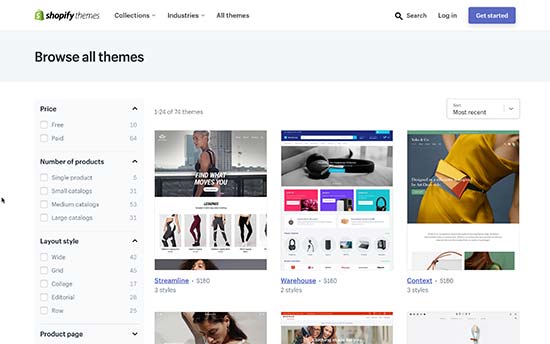
Shopify offers ready-made templates that you can use as a starting point for your eCommerce store. It also offers built-in tools to customize the layout, colors, and other settings.
There are currently 10 free and 65 paid themes available on the Shopify website. This is a very small number, especially when compared to thousands of themes available for WooCommerce.
On average, a paid theme for Shopify starts from $160. You may find cheaper themes on third-party theme marketplaces where Shopify themes may be available for as low as $59.
You can also hire a developer to make you a custom Shopify theme. However, Shopify is not as popular among developers as WooCommerce, which means your hiring pool will be quite small and rates will be higher.
Depending on the developer you choose and their rates, a custom design development for Shopify can cost between $5,000 to $30,000 USD.
BigCommerce Design Costs
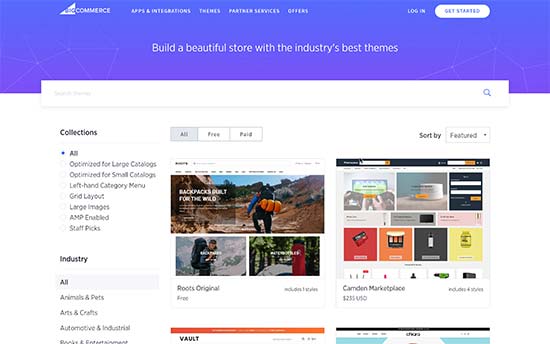
BigCommerce also offers paid and free themes. There are currently 12 free themes in multiple styles and more than a 100+ paid themes in the store.
Each of these themes is fully customizable using an intuitive user interface. You can add your own business logo, custom colors, and choose different layout styles for your store.
All themes are mobile responsive and designed for higher conversion rates. They strictly adhere to BigCommerce platform guidelines and coding standards, so you get the same user experience regardless of which theme you choose.
You can also find BigCommerce themes from third-party marketplace websites. However, these themes may not be as good in quality as those available in the official store.
BigCommerce also allows developers to upload custom made themes. You can find a developer for hire on BigCommerce’s official partner’s directory or freelance marketplaces like UpWork.
Pricing for paid BigCommerce themes start from $160+. A custom BigCommerce theme can cost you somewhere between $3,000 to $30,000, depending on the developer or agency you hire for the job.
Estimated Design Costs for an Ecommerce Website
WooCommerce – Free, $99 for premium, and $5,000 for custom
Shopify – Free, $160 for premium, and $5,000 for custom
BigCommerce – Free, $160 for premium, and $5,000 for custom
Note: Both BigCommerce and Shopify have limited themes both free and paid. WooCommerce gives you access to thousands of free and paid themes, large pool of developers, and a lot more flexibility in design.
4. Cost of Add-ons and Extensions
It is simply not possible for an eCommerce platform to bake all the features you’ll need into one software. Even if they tried, things would get messy and the software would become difficult to use.
To fix this problem, most eCommerce software are made with a modular approach. This allows the core software to be extended using add-ons and apps.
These add-on or extensions allow you to add new features to your eCommerce website and extend its functionality. Many of them are paid and buying them will increase your cost of making an eCommerce website.
Let’s compare the costs of add-ons and extensions on popular eCommerce platforms.
WooCommerce Extensions and Add-ons
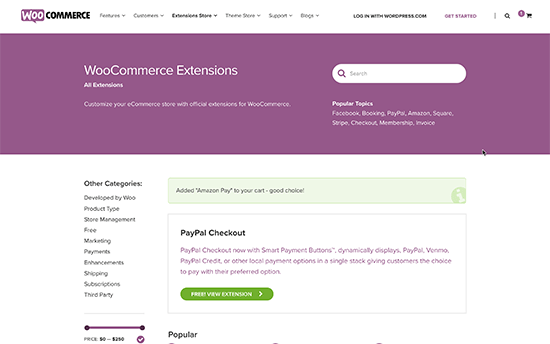
When it comes to add-ons and extensions, no other eCommerce platform comes even close to WooCommerce. There are thousands of both free and paid add-ons available for WooCommerce that you can use.
You also need to keep in mind that WooCommerce runs on top of WordPress, which gives you access to 55,000+ free plugins as well.
There is a plugin or add-on available for any feature that you can think of.
Want to see some examples? See our expert-pick of essential WooCommerce plugins showcasing the most popular WooCommerce add-ons (most of them are free).
Pricing for paid WooCommerce addons start from $19 and can go as high $299 (depending on licensing plans and features of a plugin).
If that’s not enough, and you want a custom feature, then you can hire a developer to make a plugin for you. It could cost you anywhere from $500 to $10,000 USD depending on how much work is required or the rates of the developer you hire for the job.
WooCommerce Addon Costs: Free – $299 and custom plugins cost $500 – $10,000 USD
Cost of Shopify Addons
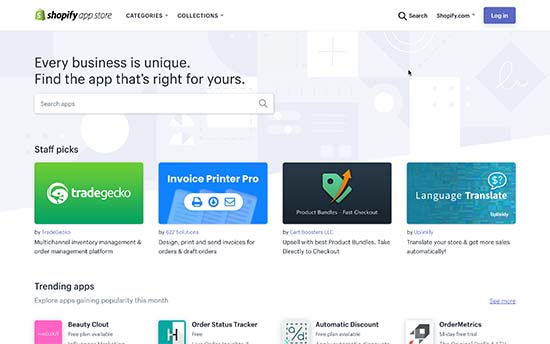
Shopify is a SaaS platform and the core software is tightly integrated to provide maximum security and stability to all users.
However, they do offer APIs for developers to integrate their own services and solutions into Shopify. These addons are available as third-party apps on the Shopify app store.
There are hundreds of apps available both free and paid. The prices for paid apps vary and most of them are available on a monthly subscription basis.
Shopify also allows you to add private apps made specifically for your store. The app needs to be stored and run elsewhere, and you can generate Shopify API keys to manage the app’s access permissions.
Shopify Addon Costs: Free – Varied monthly subscription apps. Custom app: $5,000+ depending on developer rates and skills.
BigCommerce Addons Cost
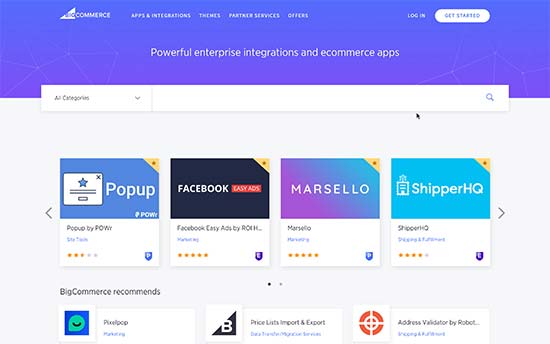
Similar to Shopify, BigCommerce also allows you to install both free and paid apps. Many of these third-party apps are available on a monthly subscription basis.
You can also hire developers to create custom apps for a single store. These apps are stored as a draft app and you can only use it on that particular store.
BigCommerce Addon Costs: Free – Varied monthly subscription apps. Custom app: $1000+ depending on developer rates and skills.
Estimated Cost of Addons on an Ecommerce Website
This one is hard to calculate because each online store will use different apps for their own needs.
Ofcourse using more paid add-ons will cost more and increase your total costs significantly. Add-ons with recurring billing will be an ongoing expense for your business.
We are assuming that you will be careful with paid add-ons to give a very conservative estimate of the costs.
Add-on costs: Free – $1,000 USD
WooCommerce addons and WordPress plugins overall are cheaper since they’re billed on annual basis whereas Shopify and BigCommerce apps are billed on monthly basis.
5. Total Cost of Building an Ecommerce Website
Now that we have covered different spending areas for an eCommerce website, let’s take a look at how much would be the total cost of building an eCommerce website.
As mentioned earlier that each eCommerce platform gives you the flexibility to choose how much money you would spend. This would obviously affect your overall costs.
Following are the estimated total costs of building an eCommerce website.
WooCommerce Starter – $500 – $3000 (Shared hosting, paid design, fewer paid plugins and services).
WooCommerce Custom – $5000 – $10,000 (Managed WordPress hosting, custom eCommerce design, paid plugins and services).
WooCommerce Enterprise – $10,000+ (Dedicated hosting servers, custom design and features, paid plugins and services).
Shopify – $1,000 – $10,000+ (Your costs would increase dramatically when you make more sales and if you are using a third-party payment service).
BigCommerce $1,000 – $10,000+ (Your costs will increase when you make more sales as you will be asked to upgrade your plan).
A WooCommerce / WordPress eCommerce site costs between $500 and $3000 USD for a starter eCommerce business. This gives you the best value for your money as it is the most robust, flexible, and easy to use platform.
You wouldn’t have to pay additional transaction fees WooCommerce doesn’t cap your sales or number of products you add You can use it with any third-party service It has the best design options to improve conversions and make more sales
If you would rather not maintain hosting by yourself, then BigCommerce saves you money by not charging you a transaction fee for using your preferred payment services.
You can also use BigCommerce with WordPress, allowing BigCommerce to handle your store and WordPress to manage marketing content.
Lastly, Shopify could be a cheap option for making an eCommerce website but only if you use Shopify Payments to accept credit card payments on your website.
For more details see our comparisons: WooCommerce vs BigCommerce and WooCommerce vs Shopify.
6. Bonus: Costs of Growing Ecommerce Business

Now that you have made your eCommerce site. What’s next?
The real fun part comes when you start growing your eCommerce business. This part is painful and overwhelming for most beginners, but it is also the most rewarding.
It is painful because it can be excruciatingly slow if you are not using the right tools. By using proper tools to grow your business you can boost your sales and skyrocket conversions.
While these tools will also add up to your overall costs, their ROI is so high that it automatically justifies the expense.
Following are our top picks for the best marketing tools to grow your eCommerce business with their costs.
Marketing Tools
As your eCommerce site starts getting visitors, you’ll learn that most visitors leave without making a purchase. Wouldn’t it be great if you could stay in touch with them so that you can convince them to buy?
This is what OptinMonster does.
It is the best lead generation software in the world because it helps you convert abandoning website visitors into leads and customers. OptinMonster works with any kind of website and all eCommerce platforms.
For instructions and practical examples, see our article on how to convert visitors into customers.
Cost: We would recommend you to start with their Plus plan at least. It costs $19 / month with annual billing.

The best way to stay in touch with website visitors is by email, which is still the preferred mode of communication by customers.
You need to start building an email list on your eCommerce store from day 1. Basically, you are losing money each day you are not collecting emails.
The easiest way to start with email marketing is by using Constant Contact. It is the best email marketing software on the market allowing you to send targeted messages to subscribers and increase your sales.
For details and step by step instructions, see our tutorial on how to start an email newsletter.
Cost: Starting from $20 per month.
Alternatives: We also recommend SendinBlue and Drip depending on the use-cases.

The best source to get free traffic to your website is search engines. To utilize them, you will need to keep learning eCommerce SEO.
SEMRush is the best SEO tool on the market. It allows you to see the keywords your competitors are ranking for and how you can beat them by ranking higher.
In just a few clicks, it provides you a ton of optimization ideas that you can implement with minimal effort.
For instructions and details, see our guide on how to properly do keyword research.
Cost: Starting from $99.95 per month.

Normally you can just add your landline or mobile number to your eCommerce website. However, it doesn’t look very professional and can end up hurting your business.
Nextiva is the best business phone service on the market. It allows you to use one number on multiple devices, phonesets, mobile phones, and even computers.
It runs on voice over internet protocol technology also known as business VoIP. Compared to traditional landline phones, it is way cheaper and allows you to efficiently handle calls for your business.
Cost: Starting from $20 / month / user.
Alternative: RingCentral is a another popular virtual phone number app.
5. PPC Marketing
Starting an eCommerce website will not instantly start making money for your business. It will take some time before you can get search traffic to your website. Meanwhile, you’ll still be paying for hosting and other services.
This is where PPC marketing can help.
PPC or pay-per-click marketing allows you to display ads for targeted keywords in search results. You can use SEMRush to find the PPC keywords your clients are targeting and plan an effective strategy within minutes.
The best place to start with your first PPC campaign is Google Ads. It is super-easy to use and even absolute beginners can get started without any help.
PPC campaigns don’t need to cost a lot of money. You can set a small budget, run a very targeted campaign, and then increase the budget to get more leads and sales.
PPC is not just for eCommerce startups, you can continue using PPC marketing alongside your SEO efforts to get targeted traffic to your store.
Cost: You can start as low as $100 and increase budget as you need.
How much would it cost to properly grow an eCommerce business?
Basically, it depends on you. Your goal should be to find the right balance of tools start building upon it. Keep trying new tools as your business grows and you have more budget to expand.
Estimated Cost of Growth Hacking: $1000 to Unlimited
We hope this article gave you a good idea of how much does an eCommerce website cost in real numbers. We recommend being thrifty and only spending when it is essential for your business.
You may also want to see our guide on how to grow your business on a very small budget and the best live chat software for eCommerce websites.
If you liked this article, then please subscribe to our YouTube Channel for WordPress video tutorials. You can also find us on Twitter and Facebook.
The post How Much Do Ecommerce Websites Cost in 2019? (Real Numbers) appeared first on WPBeginner.
Read more: wpbeginner.com
As a user of WordPress and blogger writing about the platform, there are some rules about the WordPress logo and trademark that you need to keep in mind.
WordPress is an open-source software, but it is still protected by copyright and trademark laws. Many beginners don’t know them, and they may accidentally violate the guidelines.
In this article, we will explain the rules you need to follow when using the WordPress logo and trademark. We will also discuss why it is important and what rights you are given under the WordPress license.
Understanding GPL – The WordPress License
Let’s start with the basics first.
There are two types of WordPress websites. First, there is WordPress.com which is a hosted solution, and then there is the popular WordPress.org also called self-hosted WordPress.
When most people say WordPress, they are talking about WordPress.org. To learn more see our guide on the difference between WordPress.com and WordPress.org.
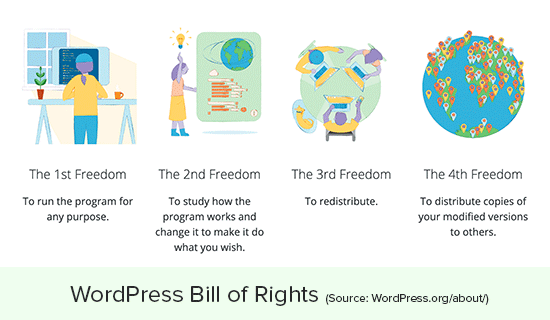
WordPress is released under the open source GPL license. This makes WordPress a free software. However, free here is used as in freedom not as in free coffee.
This license gives anyone the freedom to download, copy, use, study, and modify the WordPress code.
While the software itself is free to use, you will need to purchase a domain name and web hosting account to install WordPress and make a website.
To learn more, see our article explaining why is WordPress free and what are the costs.
There is a misconception among beginners about free software and copyright. While you are free to to use the software code in any way you want, the software itself is protected by copyright and trademark laws.
What does that mean?
Basically, you can copy the WordPress code to make new software, but you cannot call your software WordPress.
The name WordPress is a registered trademark owned by the WordPress foundation. It is a non-profit organization which ensures that WordPress runs successfully as a free open source project.
Why You Need to Understand WordPress Logo and Trademark Rules?
WordPress powers nearly 33% of all websites on the internet. That’s a really huge number.
Millions of businesses rely on WordPress to effectively run their website, online communities, and blogs.
To make sure that everything works smoothly, WordPress brand and trademark needed to be protected. For this purpose, the WordPress trademark was transferred to The WordPress Foundation in 2010.
Now the problem is that WordPress foundation is not the only one that works on WordPress. It is an open source project where thousands of people contribute to its success.
Apart from those contributors, there are many companies, individuals, and freelancers who sell WordPress related products and services around the world.
If you are running a WordPress website, a web design agency, or providing WordPress related services, then you need to understand these rules to comply with the trademark policies.
That being said, let’s take a look at the rules and guidelines that you must follow to properly use the WordPress trademark and logo in your projects.
Rule 1. Always Write WordPress with a Capital P
The correct way to spell WordPress is with a capital P. This capitalization is taken very seriously by the WordPress community.
If you are going to mention WordPress anywhere, then make sure that you use the correct spelling. Using an incorrect spelling is frowned upon and considered unprofessional.
WordPress team takes it so seriously that in 2010 they added a built-in filter called capital_P_dangit() in WordPress 3.0 release.
This function automatically corrects the misspelled instances of WordPress in title, content, and excerpts.
function capital_P_dangit( $text ) { // Simple replacement for titles $current_filter = current_filter(); if ( 'the_title' === $current_filter || 'wp_title' === $current_filter ) { return str_replace( 'Wordpress', 'WordPress', $text ); } // Still here? Use the more judicious replacement static $dblq = false; if ( false === $dblq ) { $dblq = _x( '“', 'opening curly double quote' ); } return str_replace( array( ' WordPress', '‘Wordpress', $dblq . 'Wordpress', '>Wordpress', '(WordPress' ), array( ' WordPress', '‘WordPress', $dblq . 'WordPress', '>WordPress', '(WordPress' ), $text ); } Rule 2. Do not use WordPress in Your Domain Name
As we mentioned earlier that the name WordPress is a registered trademark owned by the WordPress foundation. This protects the WordPress brand and ensures its continued success.
Just like any other registered trademark, the WordPress Foundation reserves exclusive usage rights for the term WordPress. This means you cannot use WordPress as part of your brand name or website.
This restriction also includes domain names. For example:
WordPressBeginner.com Wrong! WPBeginner.com OK!
You can use WordPress in a subdomain such as (wordpress.example.com), the WordPress Foundation is mainly concerned about top-level domains.
If you see someone using WordPress in their domain name or brand name, then you should contact the WordPress Foundation and notify them about the violation.
See also: How to register a free domain name for your WordPress website.
Rule 3. The WordPress Logo
The WordPress logo consists of the letter W in a grey or sometimes white circle with a grey ring around it.
The height of the letter W is tall and graceful. Many bloggers and website owners sometimes mistakenly use the faux logo which usually has a shorter W in it.
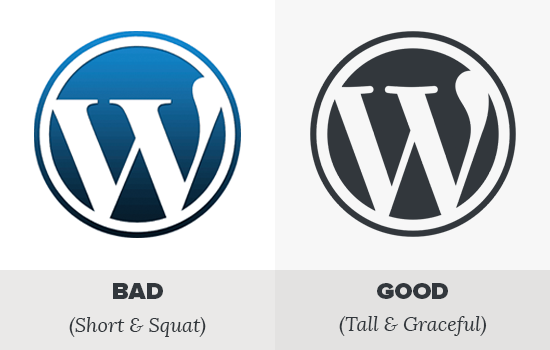
Make sure that you are using the correct WordPress logo in your projects. The WordPress logo is also available as a text mark, text mark with W logo, and W logo.
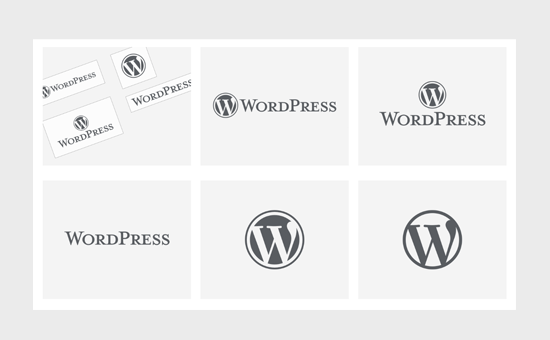
You can download all these logos from the offical WordPress logos page.
Feel free to use these images in your projects. However, make sure that you use them in accordance with WordPress trademark policy.
Rule 4. No Affiliation or Endorsement
The WordPress foundation wants you to use the WordPress logo and brand to promote the WordPress project itself.
However, you are not allowed to use it in a way that suggests endorsement or affiliation with the project. Here are some examples:
You cannot use WordPress logo in your product’s advertisements. You cannot use WordPress or its logo as part of your own logo. You can place ‘Powered by WordPress.org’ on your website, but you cannot say ‘Recommended by WordPress’.
In easier words, any attempts to take unfair advantage of WordPress brand name are a violation of the trademark policy.
What Happens When Someone Doesn’t Follow These Rules?
The WordPress foundation takes these violations very seriously. You may receive an email from them to comply with their trademark guidelines.
Failure to comply may lead to further actions. These actions may include several legal procedures.
For example, if you are using WordPress in your domain name, then foundation can claim that domain name. Their lawyers can also send you a legal notice.
The legal proceedings would cost you a lot of money, and you would lose support from the WordPress community itself.
The WordPress community relies on the WordPress foundation to take these actions. It benefits everyone in the ecosystem and helps countless WordPress related companies grow and succeed.
We hope this article helped you understand the rules you must follow to comply with the WordPress logo and trademark policies. You may also want to see our guide on the best WordPress plugins and best email marketing services for small businesses.
If you liked this article, then please subscribe to our YouTube Channel for WordPress video tutorials. You can also find us on Twitter and Facebook.
The post 4 “Must Know” Rules About WordPress Logo & Trademark (Explained) appeared first on WPBeginner.
Read more: wpbeginner.com
Dropshipping has become a popular online business idea because it’s easy to setup, requires very little investment, and the market is huge.
Unlike traditional eCommerce business that requires you to manage product inventory and handle shipping logistics, dropshipping allows you to start an online store without managing inventory or dealing with shipping.
In this beginner’s guide, we will walk you through the entire process of setting up a dropshipping business with WordPress. We will also share tips on how to find the best products for dropshipping and how to grow your dropshipping business.
Since this is a long and detailed dropshipping guide, we have broken it down into different sections that you can navigate to by using the navigation below:
What is Dropshipping? How to start a dropshipping business What you’ll need to start a dropshipping business Choosing a design for your dropshipping store Finding dropshipping products for your website Where to find dropshipping suppliers and vendors Adding dropshipping products in WooCommerce Managing dropshipping orders in WooCommerce Resources and tools to grow your dropshipping business FAQs about dropshipping with WordPress What is Dropshipping?
Dropshipping is an online business where an eCommerce store doesn’t keep the products in stock, meaning no inventory cost. Instead, when customer purchases a product, the store owner places the order with the original vendor and have them ship the item directly to the customer.
The main difference between a dropshipping business vs traditional eCommerce business is that dropshipping doesn’t require you to stock or own any inventory. You also don’t have to deal with any shipping or handling logistics.
When a product is sold through your online store, you simply forward the purchase order to a wholesaler or manufacturer who fulfills it.
Due to the low operating cost and easier setup, dropshipping has become a global eCommerce trend.
The dropshipping business model has a few pros and cons that you need to keep in mind before getting started.
Pros of starting a dropshipping store
Setting up a dropshipping business requires much lower investment than a typical online store You don’t need to purchase products or manage an inventory You don’t need to ship the product by yourself You can sell variety of products from different vendors and manufacturers
Cons of starting a dropshipping store
You are not in control of product quality and availability Managing customer expectations can be challenging when you don’t have control over quality or shipping of the products Providing customer support can be challenging You’ll be making less profit because instead of bulk buying products, you’ll be selling one item at a time
With that said, dropshipping is a proven way to make money online. You can use dropshipping to make extra money on the side or build a large profitable online business.
Let’s take a look at how to properly start a dropshipping business.
How to Start a Dropshipping Business
Starting a dropshipping business is not as difficult as you’d think. There are plenty of eCommerce platforms that allow you to easily set up a dropshipping store without any technical skills.
We recommend using WooCommerce because of its low setup costs, ability to use multiple payment gateways, and flexibility to customize your online store.
According to Builtwith, WooCommerce is the #1 software used to build eCommerce stores.
It is also the most popular choice among dropshipping stores mainly because it runs on top of WordPress, the popular website builder. Using WooCommerce gives you access to thousands of WordPress extensions, third-party integrations, and beautiful store designs.
What You’ll Need to Start Dropshipping with WooCommerce
WooCommerce is available as a free plugin for WordPress. You’ll need a self-hosted WordPress.org website to start your dropshipping store. For details, see our guide on the difference between WordPress.com vs WordPress.org.
To get started with WordPress and WooCommerce, you’ll need the following items:
A domain name (This will be your store’s online address e.g. wpbeginner.com) Web hosting account (This is where your website’s files will be stored) SSL certificate (You’ll need it to accept online payments)
Normally, a domain name costs $14.99 / year, SSL Certificate $69.99 / year, and web hosting starts from $7.99/month.
Now, this is not a small investment if you are just starting out.
Luckily, Bluehost, our hosting partner, has agreed to offer WPBeginner users a discount on hosting with free domain name + SSL certificate. Basically, you’d be able to get started for $2.75 per month.
→ Click Here to Claim This Exclusive Bluehost Offer ←
Bluehost is one of the largest hosting companies in the world, and they are an officially recommended hosting provider by both WordPress and WooCommerce.
Once you sign up, Bluehost will send your login details to your email address. It will also automatically install WordPress for you, so you can easily login to WordPress dashboard from your hosting control panel.
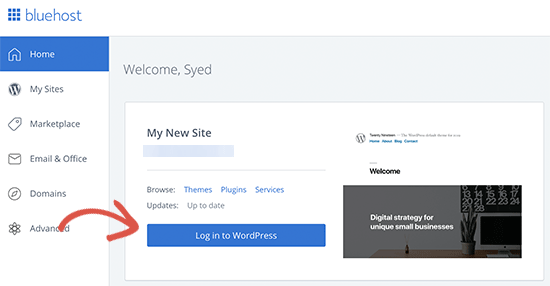
Next, you need to install and activate the WooCommerce plugin. See our guide on how to install a plugin in WordPress for detailed instructions.
Upon activation, you WooCommerce will show you a guided a set up to select currency and other basic settings.
For more detailed instructions, see our tutorial on how to start an online store.
Choosing a Design for Your Dropshipping Store

The first thing you would want to do is to change the appearance of your dropshipping store. Luckily, one of the best thing about using WordPress is that you can select from thousands of WooCommerce themes.
Here are our top picks for a dropshipping WooCommerce theme.
Astra WooCommerce Theme – A powerful WooCommerce theme built specifically to boost sales and increase conversions. Divi – Another highly customizable WooCommerce theme that comes with built-in drag & drop page builder support. OceanWP – OceanWP is a multi-purpose WooCommerce ready theme with flexible customization options. Ultra – A multi-purpose WordPress theme with several ready-made layouts and a built-in drag and drop page builder.
Once you have found a theme you like, follow our guide on how to install a WordPress theme for step by step instructions.
Finding Dropshipping Products to Sell on Your Website
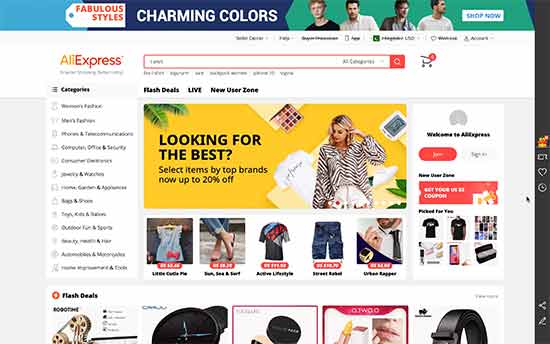
The next step is to find the products you want to sell on your dropshipping store. Before you start picking products, first you need to decide what kind of products you want to sell.
We recommend choosing a niche for your store. This will make it easier for you to find products as well as customers.
For example: if you want to sell clothing and accessories, then you can narrow it down to by style, theme, or a target audience.
It’s generally a good idea to pick a niche that you are familiar with and passionate about. Making a store about products or topics that you are unfamiliar with will require a lot more effort.
After choosing a niche for your store, you can look for products in that particular category.
In your product research, you want to look for products with low competition and high demand.
To find out which products are trending, you can browse Amazon to collect data and do your own research. Amazon shows best selling, most wished for, and top rated products for many categories.
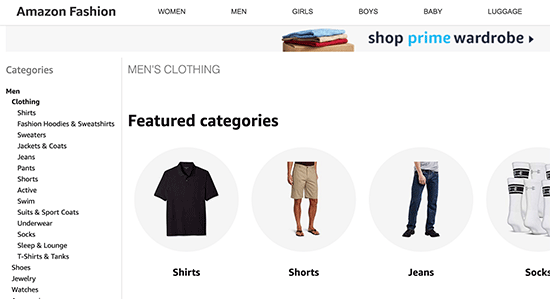
You can also use keyword research to find which product categories people are actually searching for. See our guide on how to properly do keyword research for detailed instructions.
For more on this topic, see our detailed guide on how to find the best products to sell online.
Where to Find Dropshipping Suppliers and Vendors
Once you have decided what products you are going to sell on your store, the next step is to find dropshipping suppliers offering those products.
There are many online marketplaces where you can find dropshipping suppliers and vendors from all over the world. Here is a quick list of the best dropshipping marketplaces to look for suppliers.
AliExpress – It is the largest online marketplace of suppliers offering millions of products. You can easily integrate it into your WordPress site to import products directly from AliExpress website. SaleHoo – A powerful online marketplace for dropshippers, suppliers, and eCommerce stores. It is a paid platform and subscription costs $67 per year. Doba – A large marketplace to find dropshipping suppliers. It allows you to manage lists, find products, and connect with suppliers. Subscription starts from $29 per month Etsy – Etsy is an eCommerce platform for unique and hand-made products. Many of these manufacturers would gladly dropship products directly to your customers.
We recommend starting with AliExpress for multiple reasons. First, there are easy to use WordPress plugins that will make it easy to import products directly from AliExpress to your store (and keep it in sync).
AliExpress also makes order fulfillment quite easy for eCommerce stores. As the largest marketplace for dropshipping suppliers, you can find reliable vendors with great ratings and reviews.

Along with dropshipping products, you can also sell third-party products for affiliate commission on your store. This would allow you to offer a large range of products while diversifying your income stream.
Amazon.com is the best source to find affiliate products. Your affiliate earnings will be lower, and you’ll not be able to set custom pricing. However, you can find unique products and use it to provide more shopping choices on your store.
For details see our guide on how to create an Amazon affiliate store with WooCommerce.
Adding Dropshipping Products to Your WooCommerce Store
By default, WooCommerce does not come with seamless dropshipping functionality. Luckily, there are several excellent WooCommerce dropshipping that allow you to do that.
Using a dropshipping extension, you’d be able to easily add dropshipping products, set custom prices with desired profit margin, collect orders, send them to your supplier, and more.
The functionality of your dropshipping extensions would entirely depend on the supplier or marketplace you choose.
If you are selling products from multiple suppliers from different marketplaces, then you may need multiple dropshipping extensions to automate the checkout process.
Here is our pick of the top dropshipping addons for WordPress.
AliDropship – Makes it easy to import from thousands of products on AliExpress, offer seamless checkout experience, and 1-click order fulfillment. WooDropship – Another popular plugin that makes it easy to import products from AliExpress, automatically add product images and sync pricing. WooCommerce Dropshipping – Allows you to add other third-party suppliers or vendors to your WooCommerce store, and send them order details in PDF format for fulfillment.
The way you add products to your WooCommerce store will depend on which extension, marketplace, or supplier you go with. If the extension you choose allows you to automatically import products, then you can just do that (hint: the first two in our list make it super easy to import products from AliExpress).
On the other hand, if you need to manually add products to your store, then here is how you would do it.
Manually Adding Dropshipping Products in WooCommerce
Adding products to your WooCommerce store is quite simple. First, you need to visit Products » Add New page inside your WordPress admin area.
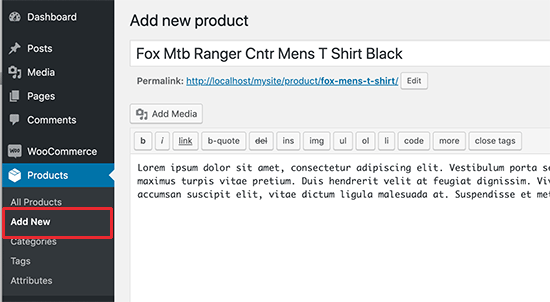
Start by providing a product title and a detailed product description. After that, you need to select product category and start uploading product photo and product gallery images.
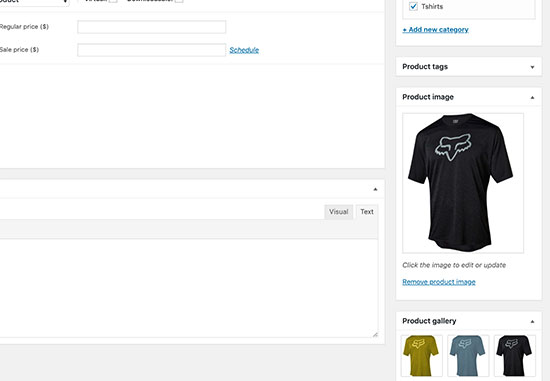
You can find product images from the supplier’s website. However, you need to ask their permission to use those images. They may also be able to provide you additional product images that you can use.
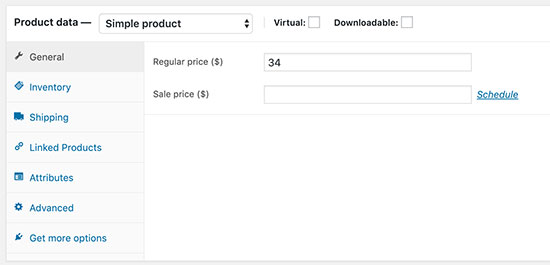
Next, you need to add product details under the Product data section. From here, you can set product price, attributes, and other options.
Below that, you can provide a short description for the product. This short description will appear on the shop front, product category, and product search pages.
Go ahead and publish your product to make it appear live on your store.
Repeat the process to add more products.
Managing Dropshipping Orders in WooCommerce
After you have added products in your store, customers will be able to buy them from your website. You’d be able to review the customer orders by visiting WooCommerce » Orders page.
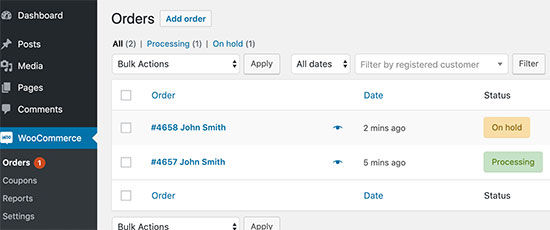
Depending on your dropshipping extension, you may see an option to fulfill orders from here. This would basically send the customer’s order details to the supplier associated with the product.
WooCommerce plugins like AliDropship makes it super easy to send orders to the supplier with a single click.
If your extension does not support that feature, then you’ll need to manually place the order with your supplier by providing them the customer’s order details and shipping information.
You can review each order by clicking on it.
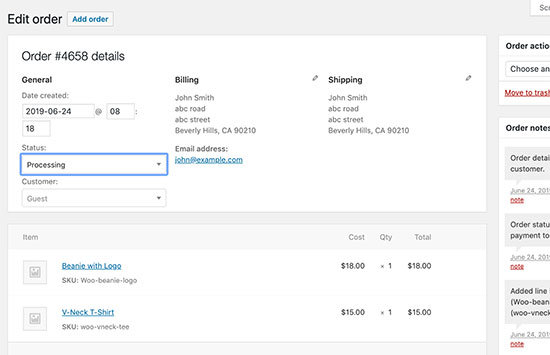
On the order detail page, you can view products ordered, customer payment information, and edit the order status. Once the order is shipped by the supplier, you can change its status to completed.
Resources and Tools to Grow Your Dropshipping Business
Setting up a dropshipping store with WooCommerce is quite easy. However, the real work starts once your store is up and running.
You would need to promote your business, bring traffic to your website, convert traffic into customers, and keep improving your marketing strategy over time.
Luckily, there are tons of great tools and extensions that you can use to help you achieve these goals. Let’s start with the basics first.
1. Ecommerce SEO
SEO or Search Engine Optimization helps you to get more traffic from search engines to your store. You can follow the instructions in our complete WooCommerce SEO guide to get more visitors to your website.
2. Optimize Conversions
Once you have a steady stream of visitors, you would want them to make a purchase. In marketing terms, this is called a conversion (converting a visitor into performing a desired action).
Conversion optimization helps you boost sales, which makes it incredibly important for your online success.
We recommend using OptinMonster, the #1 conversion optimization toolkit on the web. We have a detailed WooCommerce conversion optimization guide that helps you learn how to do that using the latest techniques.
3. Recover Abandoned Carts
Using conversion and SEO, you would be able to bring visitors to your site and help them discover more products. However, a lot of those visitors may not complete a purchase.
They may leave create an account, add products to the cart, but leave before purchasing. You’ll need to learn how to bring back those customers and recover your abandoned cart sales.
4. Ecommerce Analytics
Obviously, you would want to see how all your efforts are paying off. For this, you’ll need MonsterInsights, which helps you install Google Analytics and comes with enhanced eCommerce tracking feature.
Using MonsterInsights you can track WooCommerce customers, see which products are popular, which product pages are not performing so well, and more.
5. Misc. Plugins
WooCommerce gives you access to more than 55,000+ WordPress plugins and many of them are made specifically for eCommerce websites.
These plugins allow you to add features like contact forms, product comparisons, currency switchers, and more. See our list of the best WooCommerce plugins to find more plugins for your store.
FAQs about Dropshipping with WordPress
You may come across new questions as you start working on your new dropshipping store. Following are the answers to some of the most commonly asked questions about dropshipping with WooCommerce.
1. Why not start my dropshipping business with Shopify?
You can totally start your dropshipping business with Shopify. However, Shopify charges you for each transaction, which affects your profits as a dropshipping store.
Another downside of using Shopify is the limited number of extensions and apps that you can use. As a dropshipping business, WooCommerce gives you more extensions and the flexibility to sell whatever you want on your website.
See our comparison of Shopify vs WooCommerce for more information.
2. Can I start my dropshipping business with BigCommerce?
Yes, you can. BigCommerce is a popular eCommerce platform and it even integrates with WordPress. BigCommerce also offers more payment gateways, and it does not charge transaction fees.
It lacks in extensions and the flexibility of WooCommerce, but it offers better scalability. See our comparison of WooCommerce vs BigCommerce for more details.
3. Which hosting company to choose for my WooCommerce store?
We recommend using Bluehost for a new dropshipping business. Their shared hosting plan is perfect to get started, and they are an officially recommended WooCommerce hosting provider.
If you are looking for an alternative, then we would recommend SiteGround. They are well-known for their heroic support and fast servers.
If you can spend a little more, then you can go WP Engine. They are a managed WordPress hosting provider, which is like a concierge service for your eCommerce store.
4. Can I install WooCommerce on my existing WordPress site?
Yes, you can. WooCommerce is available as a WordPress plugin and you can install it on any WordPress site.
5. How do I make sure that dropshipping suppliers deliver products on time?
Most dropshipping suppliers are located in China. This means slower delivery than choosing a vendors located in your own country. However, many dropshipping suppliers use ePacket for faster deliveries.
ePacket is basically a faster shipping method used by suppliers in China in partnership with USPS and other mail services. Ask your suppliers if they deliver products via ePacket for faster deliveries.
6. What to look for when finding a dropshipping supplier?
AliExpress and other marketplaces allow you to view supplier ratings, reviews, number of products they have delivered, and other useful information. This data tells you how reliable a supplier has been in the past. You can also read reviews to learn more about the quality of products delivered.
Since you don’t have control over the quality and delivery of products, you need to spend time on finding reliable dropshipping partners for your store.
7. Is dropshipping legal?
Because starting a dropshipping business is extremely easy, many beginners wonder if dropshipping is legal. The answer is YES. It is completely legal across the world.
In the simplest terms, dropshipping is just a form of order fulfillment where the supplier or manufacturer handles shipping. Nothing is illegal about that.
Of course like any other business, you have to pay proper business taxes depending on the country you’re based in.
We hope this guide helped you learn how to start dropshipping business with WordPress. You may also want to see our guide on how to add live chat support to your WooCommerce store.
If you liked this article, then please subscribe to our YouTube Channel for WordPress video tutorials. You can also find us on Twitter and Facebook.
The post Dropshipping Made Simple: A Step by Step Guide for WordPress appeared first on WPBeginner.
Read more: wpbeginner.com
Are you wondering how to add nofollow links in WordPress? When you link to an external website, search engines pass a small part of link authority from your website to the other website.
Since you don’t own or control those third-party websites, it is usually a SEO best practice to add nofollow attribute to those links.
In this article, we’ll explain what is nofollow links, and how you can add nofollow links in WordPress posts, pages, and navigation menus.
Here’s a quick overview of what you’ll learn in this article:
What is a Nofollow Link? When Should You Add Nofollow Links? How to Add Nofollow Links in WordPress (Gutenberg) How to Add Nofollow Links in WordPress (Classic Editor) How to Manually Add Nofollow Links in WordPress How to Nofollow Links in WordPress Menus? How to Automatically Make All External Links Nofollow? What is a Nofollow Link?
A nofollow link is a type of link that tells search engines to not pass any link authority from your page to the other website that you’re linking to. You can turn any link into a nofollow link by adding the following link attribute: rel=”nofollow”.
Links or backlinks are an important search engine ranking factor.
When you link to a website, search engines consider that as a ranking signal, and they will pass a small portion of your page authority (link juice) to the other website.
Some SEO experts believe that by making external links nofollow, their own website will rank higher.
How to Check if a Link is Nofollow?
All nofollow links must contain the rel=”nofollow” HTML attribute.
Here’s an example HTML code of a nofollow link:
<a href="https://example.com" rel="nofollow">Google</a>
To check whether a nofollow attribute is added to a link on a website, you need to take your mouse to that link, right click on it, and then select Inspect on your browser.
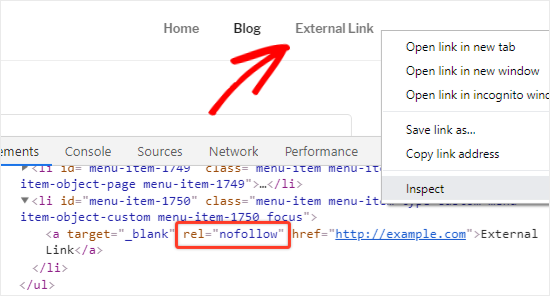
Your browser window will now split into two parts.
In the bottom window, you will be able to see the HTML source code of the link along with the nofollow attribute.
When Should You Add Nofollow Links?
As a general best practice, you should add nofollow to all external websites that you don’t trust.
It’s completely acceptable and actually recommended to link to authority websites like Wikipedia, WPBeginner, New York Times, etc without the nofollow attribute because linking to authority sites help you add credibility to your own website.
However we always recommend users to nofollow less credible websites or websites that you simply don’t trust.
The following are some cases when you should always add nofollow attributes to the links:
1. Affiliate and Sponsored Links
Most bloggers make money online using affiliate marketing.
Affiliate links are tracking links for products and services that you recommend and get referral commissions for if someone purchases your link.
Whether you’re using a direct affiliate link or cloaking it using Pretty Links, you should always add nofollow attribute to affiliate links.
Another popular way bloggers make money is by adding sponsored links. You should always add nofollow to sponsored links because otherwise search engines may consider your site as selling links / spammy.
2. External Links
Sometimes, you may link to an external source to provide a reference to your statement. Since you don’t control the content on those websites, you should consider adding nofollow to them.
In simple words, you are telling the search engines that you are linking to a source, but it is not something you can vouch for.
Note: You don’t need to nofollow a link to an authority website.
3. Sidebar Links
Some bloggers add a list of external or affiliate links to the sidebar of their WordPress blog. These external links can be from authority sites or websites that they trust.
The problem is every time a new page is created on your site, you are creating a new backlink for those websites from your sidebar.
It is important to make these links nofollow and make sure that you are not passing the SEO juice from every page to certain links.
How to Add Nofollow Links in WordPress (Gutenberg)
Since Gutenberg is a new WordPress content editor, the old nofollow plugins for WordPress are not yet compatible with it.
Currently, the only way to add nofollow links in Gutenberg is to do it manually.
Let’s take a look at the step by step process on how to add nofollow links in WordPress posts or pages with Gutenberg.
First, you need to go to Posts » Add New from the left sidebar of your admin panel.
On this page, you need to select the text that you want to add a link to, and then click on the “anchor / link” icon.
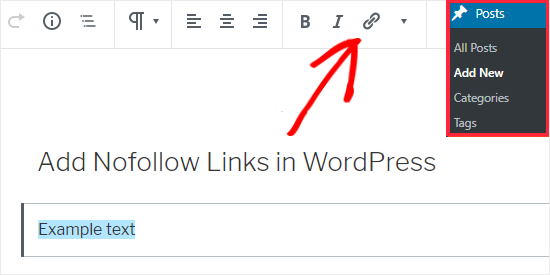
This will open a text field just below the selected text. You can paste the external link directly in the box.
If you want the link to open in a new tab, then you need to click on the down arrow icon. This will open a menu where you have to click on the “Open in New Tab” toggle box.
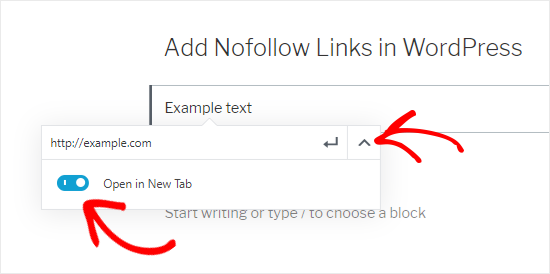
Once done, you can click on the apply or Enter icon to add the link.
To add the nofollow attribute to your link, you need to select the block containing your link and then click on the 3 vertical dots icon present at the top bar.
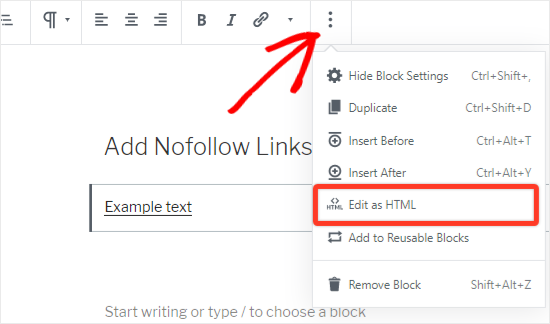
This will open a menu where you need to click on the Edit as HTML option.
You will now see the HTML code of your link. Go ahead to add the rel=”nofollow” attribute to the link element.
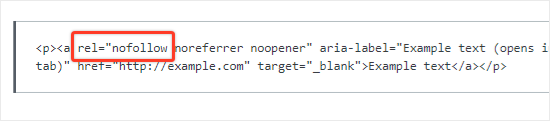
If you see the rel=”noopener noreferrer” attribute in the HTML code, then add a space after noreferrer and paste nofollow after that.
Once done, you can click on the 3 vertical dots icon again and select the Edit visually option to go back to the visual format.
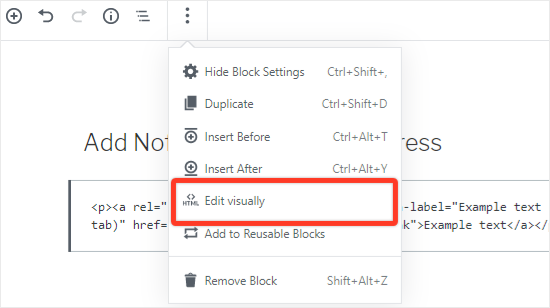
This will convert your normal link to a nofollow link. You can follow the same process for adding nofollow attribute to all other external links.
How to Add Nofollow Links in WordPress (Classic Editor)
Although it is recommended to upgrade to the newer version of WordPress, some users still prefer to use the Classic Editor for writing their posts.
Unlike the default editor, you can easily add nofollow links in the Classic Editor with the help of a plugin.
First thing you need to do is install and activate the Title and Nofollow For Links plugin. You can follow our guide on how to install a WordPress plugin for help.
This plugin works out of the box, and there are no settings for you to configure.
Head over to Posts » Add New to create a new post. You need to add some text to the post editor and select the text that you want to link. Next, click on the Link icon present in the toolbar.
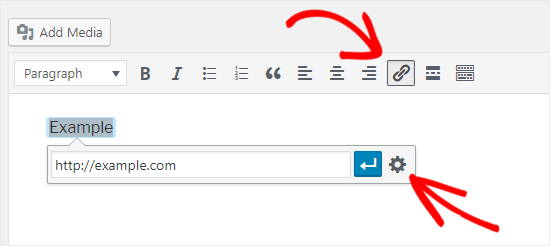
After that you can add the external link to the textbox field below and click on the gear icon to open the Link options.
This will open up a modal window where you will see a nofollow checkbox just below the “Open link in a new tab” option.
Go ahead to select the Add rel=”nofollow” to link checkbox and then click on the Update button.
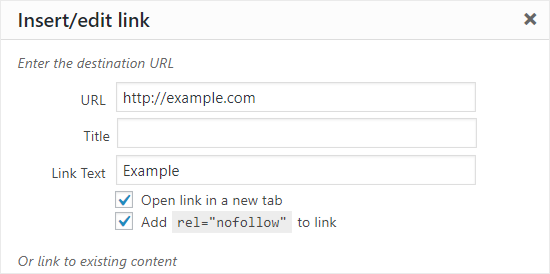
This allows you to add a nofollow attribute to any link when writing a post. This is also useful for users who are not confident with editing HTML code.
Most bloggers select the “Open link in a new tab” checkbox as well when adding an external link. This is a great way to reduce bounce rate and keep your visitors from leaving your website.
How to Manually Add Nofollow Links in WordPress
You have already learned how to add nofollow links in the Gutenberg editor manually. However, that method is only useful when you want to add the nofollow attribute to some of your links.
If you have a lot of external and affiliate links in your post, then you should switch to the Code Editor to add nofollow attribute faster.
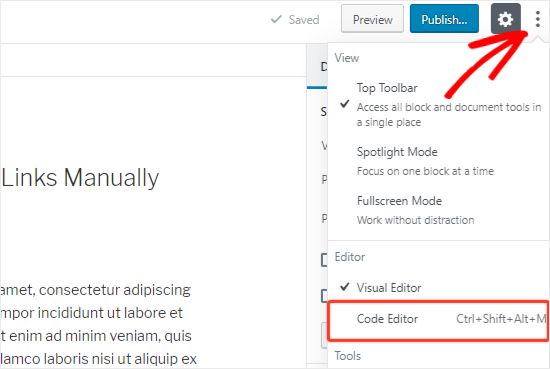
Simply, click on the 3 vertical dots icon, present at the top-right corner of the page. This will open a dropdown menu where you need to select the Code Editor option.
You will now see the HTML code of the page. Next, search for the external and affiliate links and then, add the nofollow attribute to all of them.
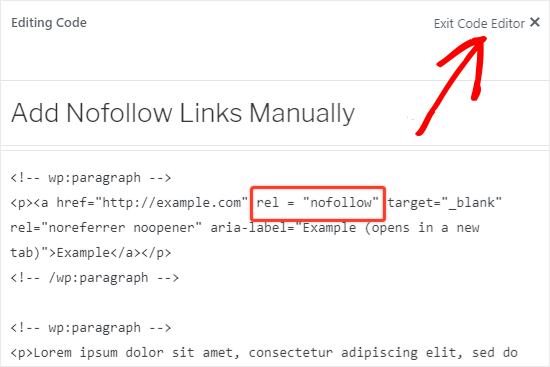
Once done, you need to click on the “Exit Code Editor” link to revert to the visual editor.
If you’re using the Classic Editor, then you can easily use a plugin to add nofollow links. However, you can also add nofollow links manually.
To do that, you need to switch to the Text Editor by clicking on the Text tab. Next, you can add rel=”nofollow” to any link you want.
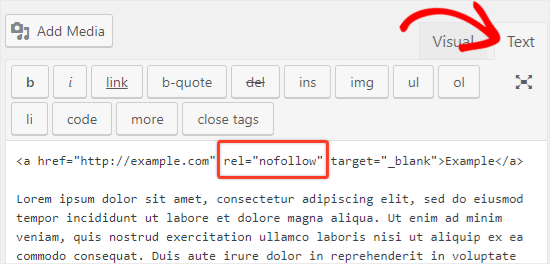
To go back to the visual editor, you have to click on the Visual tab, placed just beside the Text tab.
How to Add Nofollow Links in WordPress Menus?
Some bloggers and site owners may add external links to the navigation menu of their website.
While adding a nofollow attribute to WordPress menu links is extremely simple, it is not as clearly visible.
Let’s take a look at how to add nofollow links in WordPress navigation menus.
First, you need to click on Appearance » Menus from the left sidebar of your admin panel.
Next, select the menu where you want to add the external link and then click on the Select button to open it.
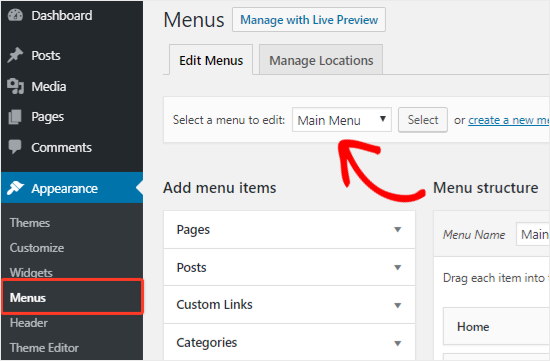
After that, you need to click on the “Custom Links” tab to add the link text and external link URL. Once done, you need to click on the “Add to Menu” button to create a new menu item.
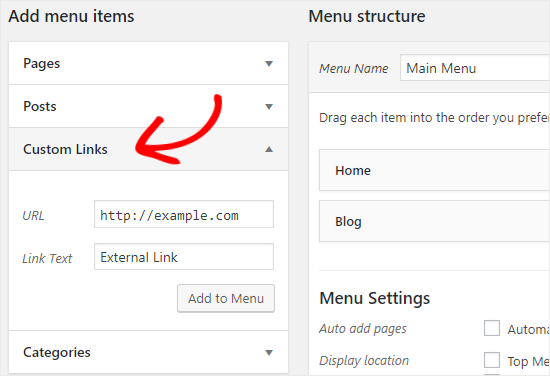
The external link will now appear in the Menu Structure column along with the other menu items.
Next, click on the Screen Options button at the top-right corner of the screen and select the Link Relationship (XFN) and Link Target options.
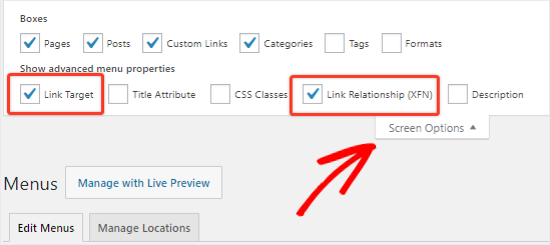
Now scroll back down and click on the downward arrow icon of the new menu item to expand it. Here you will find the “Link Relationship” and “Open link in a new tab” options, just below the Navigation Label textbox.
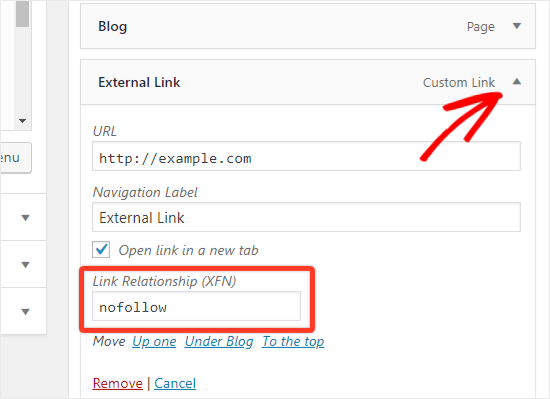
To add the nofollow attribute, you need to write nofollow in the Link Relationship (XFN) textbox. You can also check the “Open link in a new tab” option if you want.
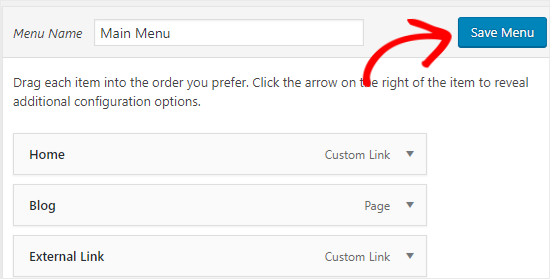
Lastly, click on the Save Menu button to store your changes. This will add the nofollow attribute to the external link in your WordPress menu.
How to Automatically Make All External Links Nofollow?
Some WordPress users want to automatically add the nofollow attribute to all external links on their site.
Most solutions that offer this are done with the help of JavaScript which is not helpful for Google and the SEO of your site. Instead, you should manually nofollow the links using the above methods.
In case you are concerned about the comment section, then the good news is that WordPress already adds the nofollow attribute to all comment links by default.
If you’re still looking for a solution to automatically nofollow the external links, then you can use the External Links plugin.
It adds the rel=”nofollow” attribute to all the external links on the posts, pages, navigation menus, and the sidebar.
To install the External Links plugin, head over to Plugins » Add New from the left sidebar of your admin panel.
Upon activation, you need to go to Settings » External Links page.
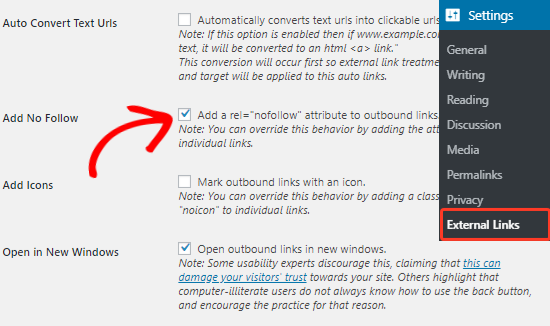
Here you need to select the “Add No Follow” checkbox. If you want the external links to open in a new tab, then you should select the “Open in New Windows” checkbox as well.
This plugin also allows you to add a list of domains and subdomains which should not be made nofollow.
To do that, you need to scroll down to the bottom of the page and then add the domains, separated by commas or space, to the “Domains to Exclude” textarea.
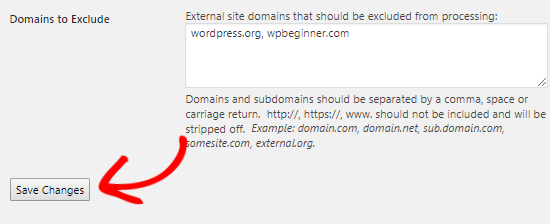
Once done, you should click on the Save Changes button to store the settings.
That’s all! This plugin will now make all the external links nofollow on your site automatically.
We hope this guide helped you to learn how to add nofollow links to your WordPress site. You may also want to read our beginner’s guide to image SEO, and our ultimate guide for blog post SEO to help you further optimize your blog posts.
If you liked this article, then please subscribe to our YouTube Channel for WordPress video tutorials. You can also find us on Twitter and Facebook.
The post How to Add Nofollow Links in WordPress (Simple Guide for Beginners) appeared first on WPBeginner.
Read more: wpbeginner.com